What Is Instant Replay in Gaming? (How It Works)

Instant replay continuously records your gameplay into a rolling buffer, so you can save what just happened after it happens. Here's how the buffer actually works, which tools offer it, how it differs from automatic clipping, and the settings worth getting right.
Instant replay is a feature that continuously records your gameplay into a temporary buffer, so you can save what just happened after it happens. Instead of deciding to record before a moment, you press a key after it — and the last 30 seconds, or five minutes, or hour is written to a file.
It's the feature that makes clipping practical, because nobody knows a play is going to be worth saving until it's over.
How the Buffer Works
Your PC or console is constantly writing recent gameplay into a rolling chunk of memory or disk. That chunk has a fixed size: when it's full, the oldest footage is overwritten by the newest. Nothing is permanently saved until you press the hotkey — at which point the current contents of the buffer are written out as a video file.
Two consequences follow from that design:
- Instant replay costs almost nothing when idle. It's writing to a buffer either way, and hardware (GPU) encoding keeps the performance cost minimal on modern systems.
- The window is finite. If a highlight happened ten minutes ago and your buffer is thirty seconds, it's gone. Buffer length is the setting people most often wish they'd changed earlier.
Where You'll Find It
- NVIDIA ShadowPlay / NVIDIA App — “Instant Replay”, 30 seconds to 20 minutes, GeForce cards only.
- Xbox Game Bar — “Record that”, Win + Alt + G, last 30 seconds by default and extendable in Settings.
- OBS Studio — “Replay Buffer”, fully configurable length and quality.
- PS5 — the Create button saves anywhere from the last 15 seconds to the last hour.
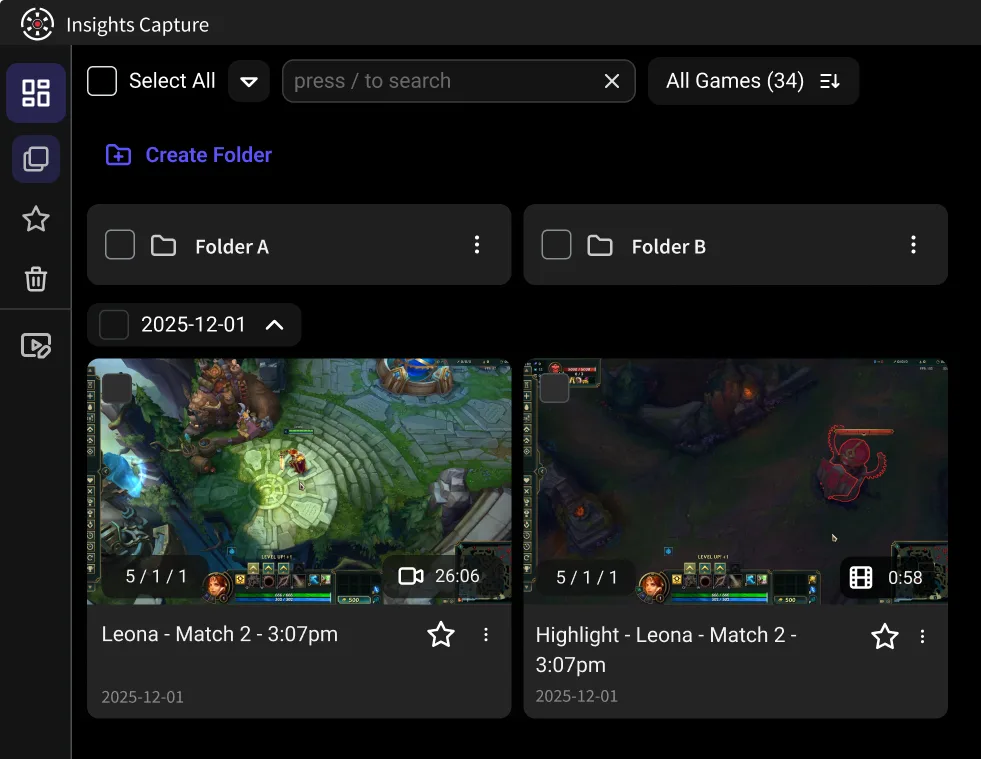
- Insights Capture — instant replay plus automatic capture: it also marks kills, wins and objectives on the timeline, so you don't have to press anything at all to find your highlights later.
Full comparison of all of these: How to Clip on PC.
{{button}}
Instant Replay vs. Automatic Clipping
They solve the same problem at different distances. Instant replay still requires you to react — you have to remember, mid-adrenaline, to hit the key. Automatic clipping watches for in-game events and flags them without input, so the moment is captured even when you forget.
In practice most players end up with both: automatic capture as the safety net, instant replay for the moments detection doesn't know about — a funny fail, a teammate's reaction, something that isn't a kill.
Settings Worth Getting Right
- Buffer length: 1–3 minutes is the sweet spot. Thirty seconds is often just too short to catch the setup of a play.
- Encoder: hardware or GPU. CPU encoding while gaming is what causes the frame drops people blame on recording in general.
- Resolution and frame rate: 1080p60 covers nearly everything. See what FPS to record at.
- Storage: the buffer needs space. Keep 20–50 GB free, ideally on an SSD.
FAQs: Instant Replay
1. Does instant replay lower FPS?
With GPU encoding, minimally. Most reported frame drops come from CPU encoding or an overloaded drive.
2. How far back can instant replay go?
It depends on the tool: 30 seconds to 20 minutes on ShadowPlay, up to an hour on PS5, and configurable in OBS.
3. Why did my instant replay clip miss the moment?
The buffer was shorter than you thought, or it had already been overwritten. Increase the buffer length.
4. Is instant replay the same as a game's replay system?
No. Replay systems in CS2, League and Valorant re-simulate the match inside the game and expire; instant replay produces an actual video file that plays anywhere, permanently.
5. What's the best instant replay software?
ShadowPlay if you have an NVIDIA card and want the lightest option; Insights Capture if you'd rather not rely on remembering the hotkey at all.
Final Thoughts
Instant replay exists because highlights are only obvious in hindsight. Set your buffer to a couple of minutes, use GPU encoding, and you'll stop losing plays to “I should have been recording.” For the version that doesn't need you to press anything, Insights Capture marks your best moments automatically. Contact us now!