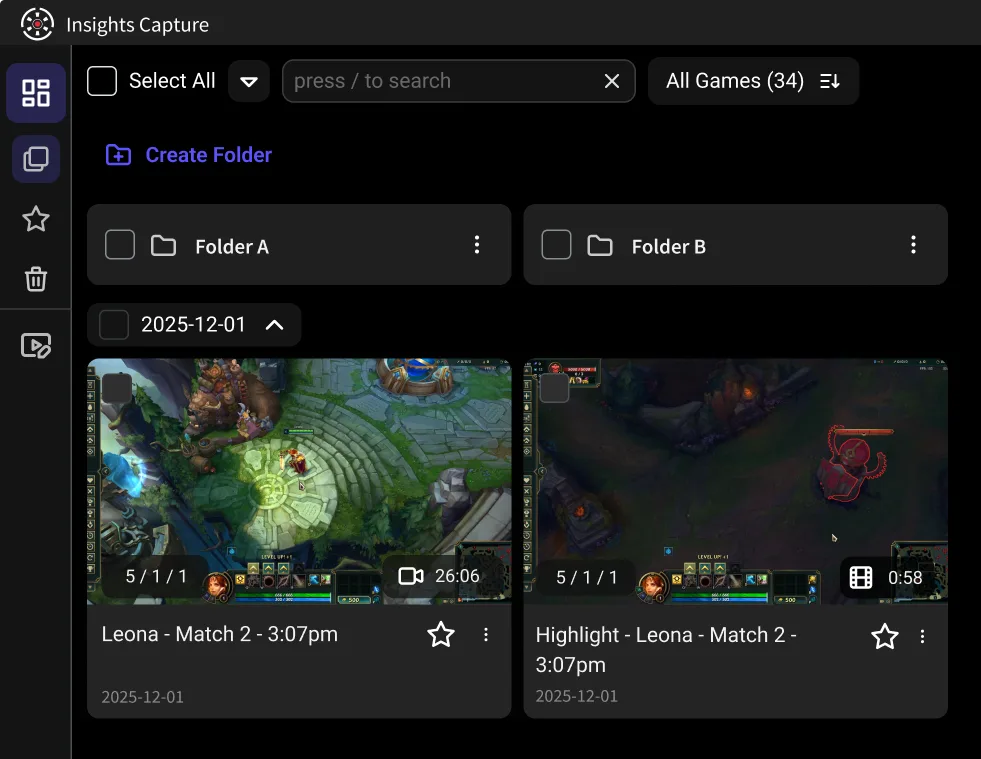
What FPS Should You Record At? 30 vs 60 vs 120 FPS Explained

For most players, 60 FPS is the right recording setting. Here’s when 30 or 120 makes more sense, how much storage each one uses per hour, what YouTube recommends and how to test the impact on your own PC.
Record at 60 FPS for most gameplay. It looks smooth, works everywhere and keeps files a sensible size. Drop to 30 FPS if your PC struggles or storage is tight, and use 120 FPS only if you plan to slow your footage down. This guide is for PC players recording for YouTube, clips or match review. It covers what each frame rate is good for, how much storage it takes, how to record at 120 FPS and how to measure the impact on your own PC.
30 vs 60 vs 120 FPS: The Quick Answer
| Recording FPS | Best for | New frame every | Main trade-off |
|---|---|---|---|
| 30 FPS | Story games, slower games, weaker PCs | 33.3 ms | Fast motion looks choppier |
| 60 FPS | Most gameplay, YouTube, clips, match review | 16.7 ms | Larger files than 30 FPS |
| 120 FPS | Slow-motion edits, frame-by-frame review in competitive shooters | 8.3 ms | Largest files and the heaviest load on your PC |
What Does FPS Mean?
FPS stands for frames per second: how many images a game or video shows each second. So 120 FPS means 120 images every second. More frames make motion look smoother, but they also give your PC more to encode and your drive more to store.
Gaming FPS and Recording FPS Are Different Numbers
Your game’s frame rate is what you see while you play. Your recording frame rate is what ends up in the video. They don’t have to match.
- Game above recording FPS: playing at 144 FPS and recording at 60 is normal. The video simply keeps 60 frames each second.
- Game below recording FPS: if your game only holds 45 FPS, a 60 FPS recording won’t look like 60. The video can’t show frames your game never drew.
So if you’re asking about the best FPS for gaming, that’s the first number: aim for the highest steady frame rate your monitor can show. If you’re asking what to record at, 60 FPS is the place to start.
Is 30 FPS Good? Is 60 FPS Good? Is 120 FPS Good?
Is 30 FPS good?
For playing, it’s the low end: fine for slower games, rough in fast shooters. For recording, it suits story games and commentary, and it’s the right call when your PC or storage is the limit.
Is 60 FPS good?
Yes, for both. It’s a solid baseline for playing most games and the best default for recording. Fast motion looks far cleaner than at 30 FPS, and YouTube lists 60 among its common frame rates.
Is 120 FPS good?
For playing, yes, if your monitor runs at 120 Hz or higher. On a 60 Hz screen you won’t see the extra frames. For recording, it only pays off when you use those frames: slowed to 50%, 120 FPS footage still plays at 60 FPS, while 60 FPS footage drops to 30. YouTube’s bitrate tables stop at 60 FPS, so for normal uploads 120 FPS mostly means bigger files.

How Much Storage Each Frame Rate Uses
File size depends on bitrate, and higher frame rates need more of it. This table uses YouTube’s recommended SDR upload bitrates, video only. To work out your own numbers, multiply Mbps by 0.45 to get GB per hour.
| Setting | Bitrate | Storage per hour |
|---|---|---|
| 1080p, 30 FPS | 8 Mbps | 3.6 GB |
| 1080p, 60 FPS | 12 Mbps | 5.4 GB |
| 1440p, 30 FPS | 16 Mbps | 7.2 GB |
| 1440p, 60 FPS | 24 Mbps | 10.8 GB |
| 4K, 30 FPS | 35–45 Mbps | 15.8–20.3 GB |
| 4K, 60 FPS | 53–68 Mbps | 23.9–30.6 GB |
YouTube doesn’t list a bitrate for 120 FPS. For 1080p at 120 FPS, try 18 to 24 Mbps, about 8 to 11 GB per hour, and check fast motion for blur. That’s our starting point, not a YouTube figure.
What FPS Should You Record At for YouTube?
Use 60 FPS for most gaming videos. YouTube advises uploading at the same frame rate you recorded, so choose your frame rate before you record instead of converting later. Its common frame rates are 24, 25, 30, 48, 50 and 60. For more on uploads, see how to record your gameplay for YouTube.
How to Record at 120 FPS
- Check your game first. It needs to hold 120 FPS or higher in the busiest moments, or the extra frames won’t exist.
- Set your recorder to 120. Not every recorder offers it. Xbox Game Bar only offers 30 or 60 FPS. In OBS Studio, go to Settings > Video, choose Integer FPS Value and type 120.
- Use a hardware encoder. Choose NVENC on NVIDIA, or the AMD or Intel equivalent, instead of CPU encoding.
- Raise the bitrate and record to a local SSD. Use the starting point above.
- Run a short test. Record a minute or two of your busiest gameplay, then check the video for stutter and dropped frames.
- Edit on a 60 FPS timeline. Slow clips to 50% for clean slow motion, then export at 60 FPS.
Does Recording Lower Your FPS?
It can. Recording uses your CPU, GPU, memory and drive on top of the game. How much depends on your hardware, game, encoder and settings, so the number that matters is the one you measure:
- Turn on an FPS counter in your game or your graphics card’s overlay.
- Play a repeatable stretch, such as the same map against bots, with recording off. Note your average FPS and your lowest dips.
- Play the same stretch with recording on, at the settings you plan to use.
- If the gap bothers you, change one thing at a time: use a hardware encoder, then lower your recording resolution, frame rate or bitrate. Closing background apps helps too.
This test works for any recorder, including ours.
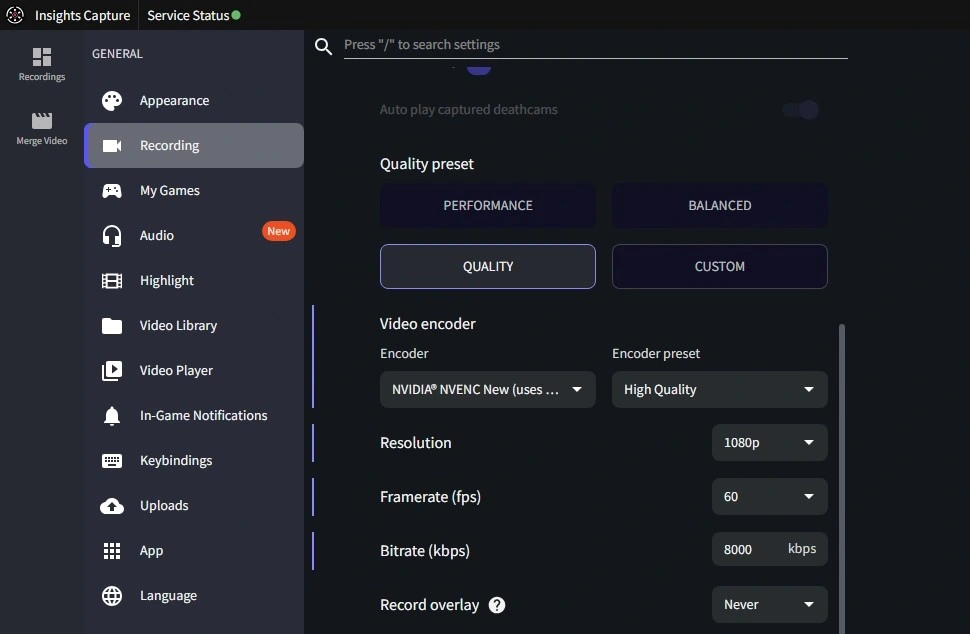
Setting Your FPS in Insights Capture
Insights Capture is our free game recorder for Windows. It detects your game, records matches automatically in supported games and bookmarks kills, deaths and assists, so you can jump straight to the play you want. Recording quality is in its settings menu.
A good starting point is 1080p at 60 FPS with a GPU encoder such as NVENC or AMF. If your PC is tight, lower the resolution or frame rate first. Press F7 (default) to start or stop a recording by hand, or turn on Instant Replay and press F6 (default) to save the moment you just played.
{{button}}
After the match, you can trim and share clips, or upload full matches to the VOD review tool and go through them with timestamped notes.
Comparing recorders? See our best game recorder guide and clipping software roundup.
See more: How to Clip on PC
See more: How to Record Roblox in High Quality
FAQs: What FPS Should You Record At?
1. What FPS should I record gameplay at?
60 FPS for most people. Use 30 FPS on a weaker PC or when storage is tight, and 120 FPS if you plan to slow your footage down.
2. Is 30 FPS or 60 FPS better for recording?
60 FPS looks smoother in fast motion. 30 FPS uses less storage: at YouTube’s recommended 1080p bitrates, about 3.6 GB per hour versus 5.4 GB.
3. Is 120 FPS worth it for recording?
Only for slow motion or frame-by-frame review. Slowed to 50%, 120 FPS footage still plays at 60 FPS. For normal uploads, it mostly means bigger files.
4. What FPS should I record at for YouTube?
60 FPS for most gaming videos. YouTube advises uploading at the same frame rate you recorded, and 60 is the highest frame rate in its bitrate tables.
5. Does recording lower my FPS in games?
It can, because recording adds work for your CPU, GPU and drive. The amount depends on your PC and settings, so compare your FPS with recording on and off.
6. Is 60 FPS good for gaming?
Yes. It’s a solid baseline for most games. Competitive players on high-refresh monitors often aim higher, but only a monitor that can show the extra frames will benefit.
7. Should my recording FPS match my game’s FPS?
It doesn’t have to. Playing at 144 FPS and recording at 60 is normal. Just make sure your game can hold your recording frame rate, or the video won’t look any smoother than the game did.
Final Thoughts
For most players, the answer is 60 FPS at a resolution your PC can hold steady. Use 30 when your hardware or storage needs the room, and 120 when you’ll actually slow the footage down. Whatever you pick, test it before a match you care about. If you want a free recorder to test with, try Insights Capture.