In Game Video Recorder: 6 Ways to Record Gameplay on PC (2026)

Six ways to record gameplay on PC, from Xbox Game Bar and OBS Studio to Insights Capture, compared, with how to choose and how to start.
An in game video recorder is software that captures your gameplay while you play, so you can save clips, review matches or share highlights. The best ones run in the background without costing you frames. Here are six ways to record games on PC, what each is good at and how to choose between them.
What Is an In Game Video Recorder?
An in game video recorder captures your game's video and audio as you play. Some record on demand with a hotkey. Others record every match automatically and let you clip afterwards. Most also save your footage as a standard video file you can edit, post to YouTube or send to friends.
The difference between a general screen recorder and a game recorder is detection and performance. A screen recorder captures whatever is on your display. A game recorder detects your game, uses GPU encoding to protect your frame rate and often adds features like highlights and clipping.
The Quick Verdict
- Easiest to start with: Xbox Game Bar, already on every Windows PC.
- Best for live streaming: OBS Studio.
- Best for GeForce owners: NVIDIA's instant replay.
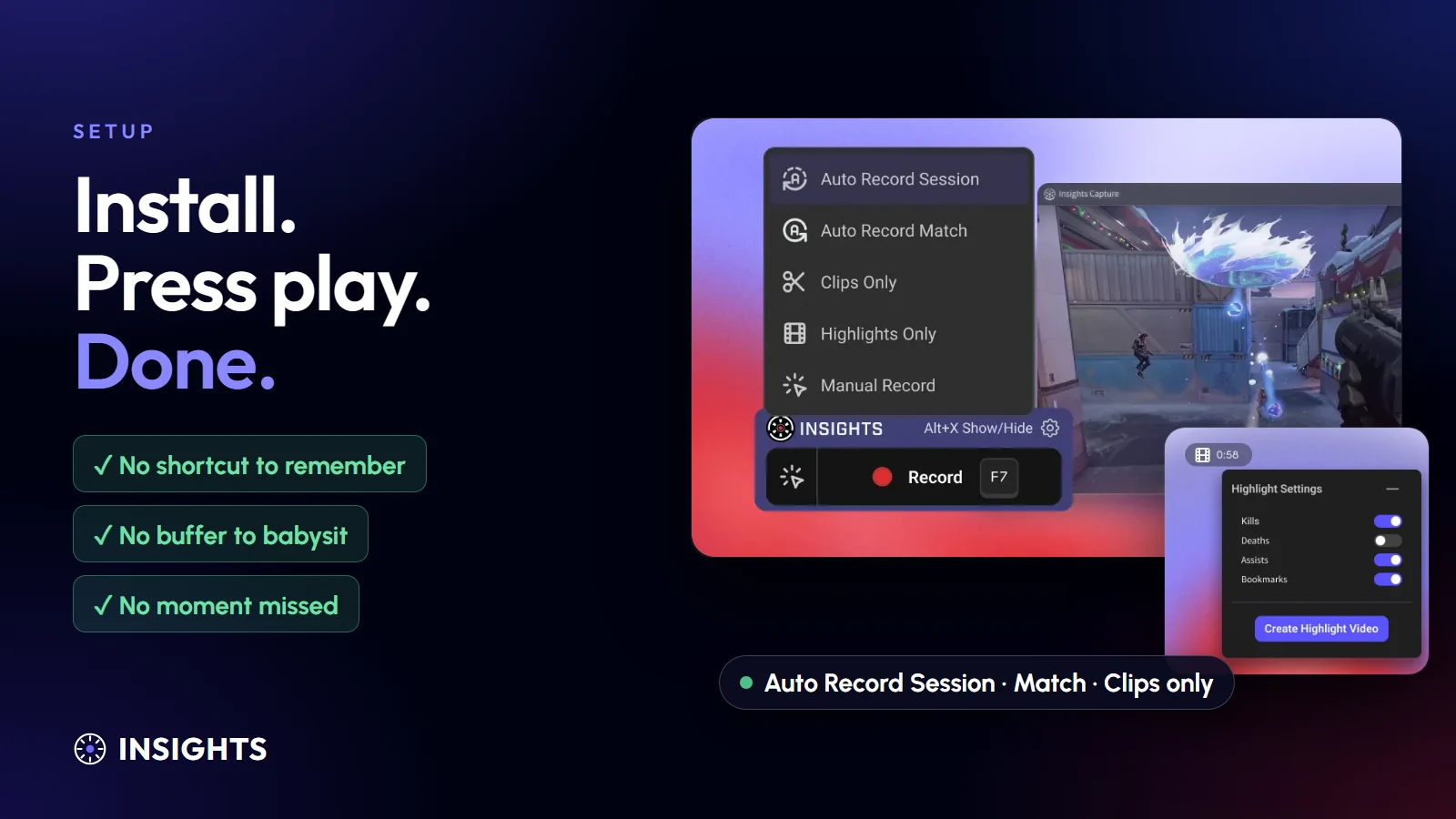
- Best for never missing a moment: Insights Capture, which records every match automatically.
6 In Game Video Recorders for PC
1. Xbox Game Bar
Press Windows + Alt + G to save the last 30 seconds of gameplay, or Windows + Alt + R to start recording. It is free, built into Windows and works in most games. It has no editor and no automatic capture, so if you didn't press the shortcut the moment is gone. See our comparison: Insights vs Xbox Game Bar.
2. Steam Game Recording
Steam can record in the background for games you launch through it, and mark moments on a timeline. It only works for Steam titles and keeps clips inside Steam.
3. NVIDIA Instant Replay
GeForce owners can save recent gameplay with a hotkey using GPU encoding, which keeps FPS impact low. It needs an NVIDIA card and is manual. See Insights vs ShadowPlay.
4. OBS Studio
OBS Studio is a free, open-source screen recorder and streaming tool. You can add a webcam, mix audio, use a green screen with chroma key and go live to YouTube. That control comes with setup: scenes, sources and encoder settings. See Insights vs OBS.
5. Bandicam
Bandicam is a paid screen recorder known for high frame rate recording and simple settings. The free version adds a watermark.
6. Insights Capture
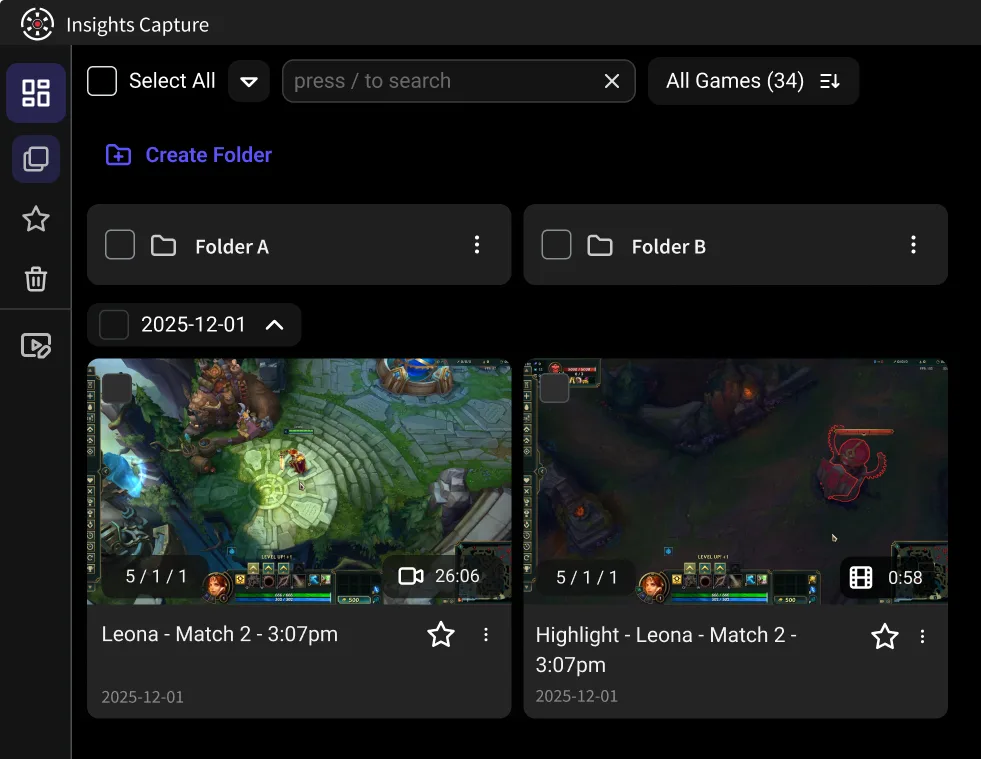
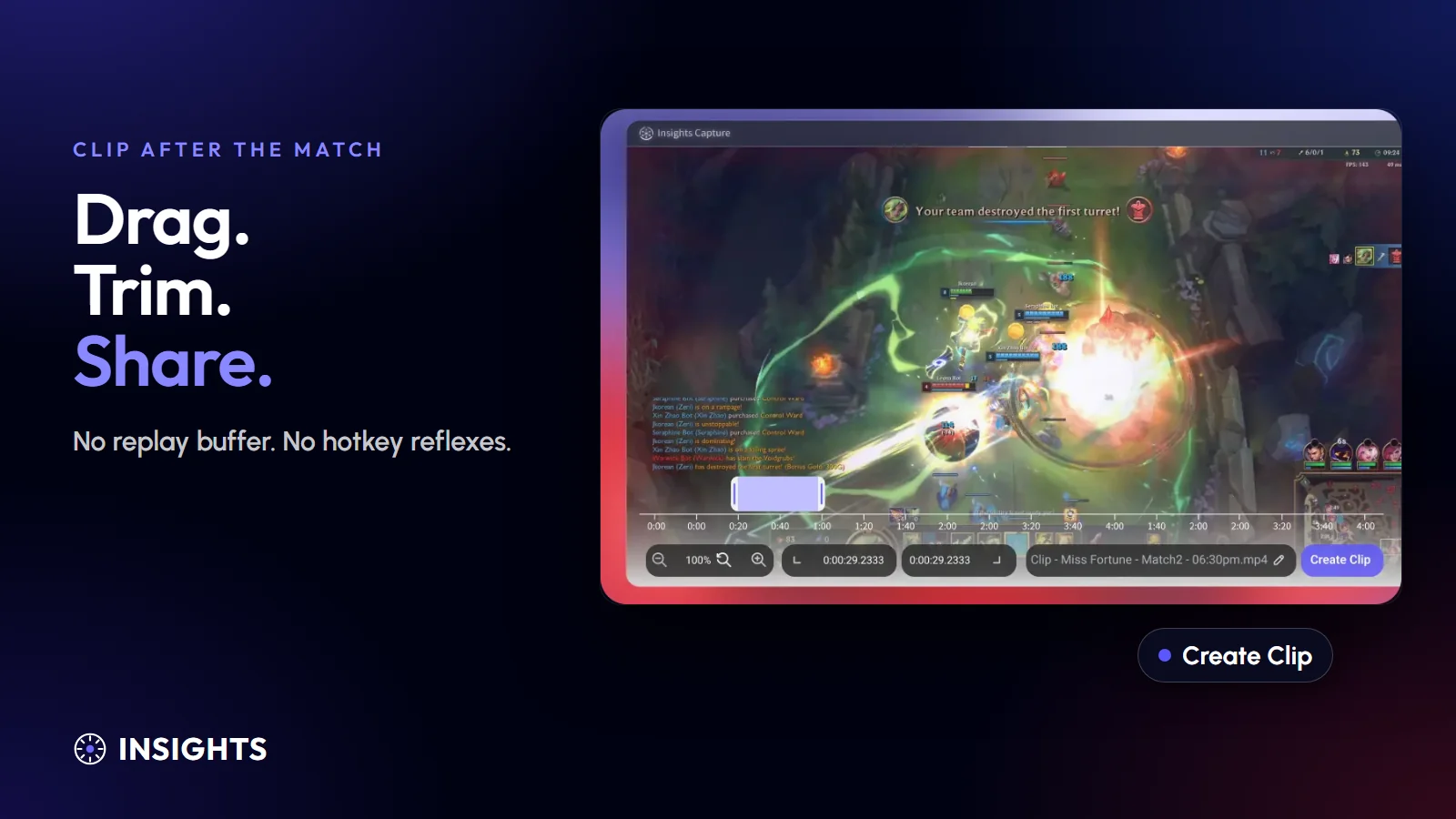
Insights Capture detects your game and records every match in the background with no meaningful FPS loss. Kills and key moments are marked on a timeline, so after the match you clip what you want in two clicks. It includes a built-in video editor, share links for Discord and social platforms and a free plan with no watermark. It runs on Windows.
How to Choose a Game Recorder
- Frame rate and quality. Look for 1080p at 60 FPS as a baseline, and 120 FPS if you play competitive shooters.
- Performance impact. GPU-encoded recorders cost far less than software encoding. Check CPU usage, especially on mid-range PCs.
- Manual or automatic. If you forget hotkeys mid-fight, automatic capture saves moments you would have missed.
- Editing and sharing. A built-in video editor saves you a separate program. Check whether it supports trimming, merging and sharing.
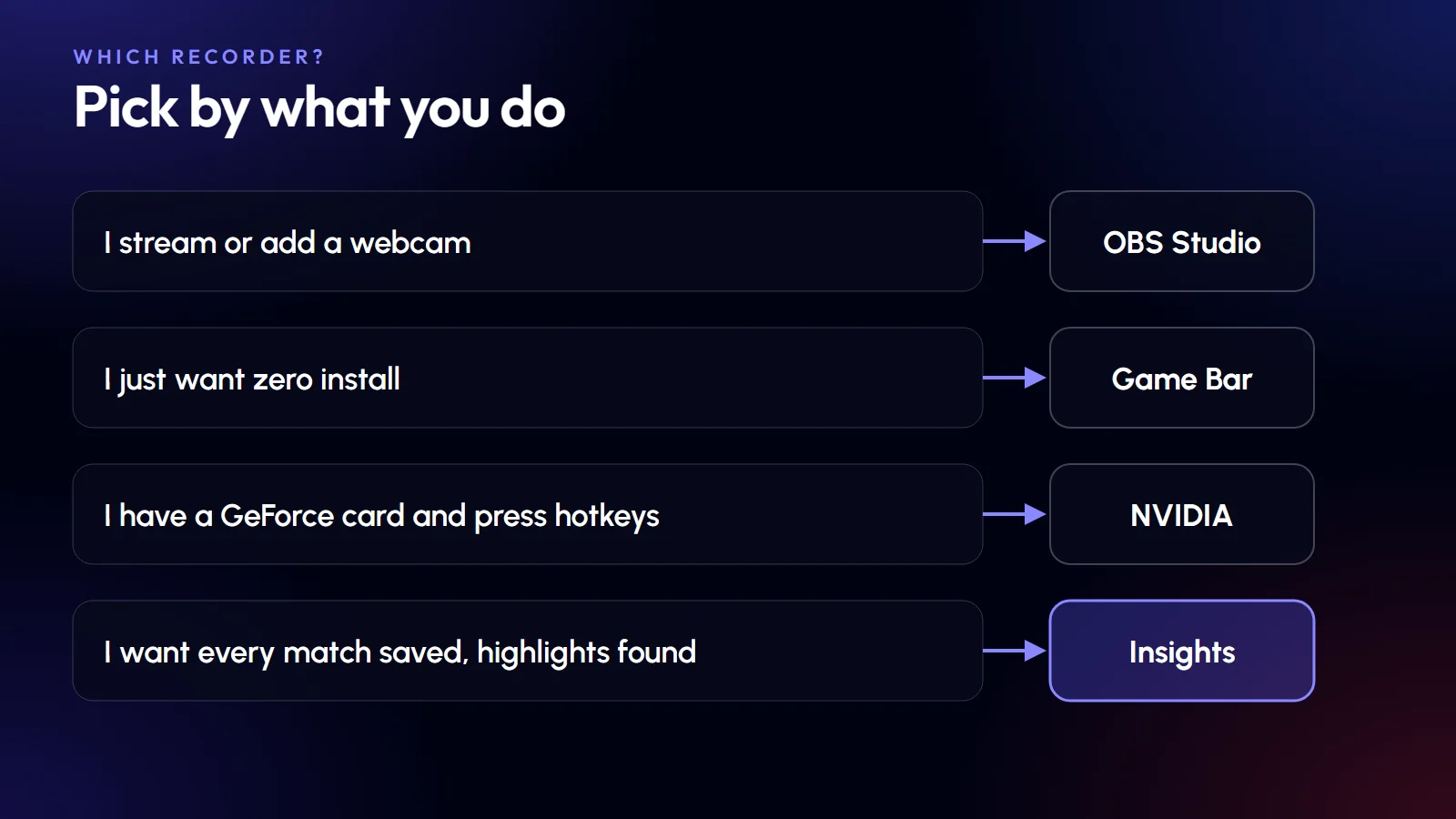
- Webcam and streaming. If you stream or add a webcam overlay, OBS Studio is the standard.
- Price. Many recorders are free, but some add watermarks or limits. Check the free version.
How to Start Recording Your Gameplay
- Pick a recorder from the list above and install it.
- Set your resolution to 1080p and your frame rate to match your game, usually 60 FPS.
- Choose where recordings are saved and make sure you have free disk space.
- Start recording with the start recording hotkey, or let an automatic recorder like Insights Capture begin for you.
- After the match, trim your best clips and share them.
Settings That Make Recorded Videos Look Good
- Frame rate: 60 FPS for most games, 120 for fast shooters.
- Resolution: 1080p is the sweet spot for YouTube and Discord.
- Audio: Decide on purpose whether your microphone and game audio are recorded together.
- Storage: Keep 20 to 50 GB free on an SSD for long sessions.
New to clipping? Read our guide to how to clip on PC, or see the best free game recorder software.
{{button}}
FAQs: In Game Video Recorders
1. What do gamers use to record videos?
Most PC gamers use Xbox Game Bar for quick clips, OBS Studio for streaming and full control, NVIDIA's instant replay on GeForce cards or an automatic recorder like Insights Capture.
2. How do I record a video while playing a game?
Install a game recorder, start recording with its hotkey or let it detect your game, and play as normal. On Windows you can also press Windows + Alt + R to start recording with Game Bar.
3. What is the best game recorder for gaming?
It depends on what you do. OBS Studio is best for streaming, Game Bar is best for zero setup and Insights Capture is best if you want every match recorded and highlights found for you.
4. Which recorder is best for gaming on a low-end PC?
Pick a recorder that uses GPU encoding and avoids heavy overlays. Insights Capture and NVIDIA's instant replay have a small performance cost. Test at 1080p and 60 FPS first.
5. Is there a free in game video recorder?
Yes. Xbox Game Bar, OBS Studio and Insights Capture are all free to use.
Final Thoughts
An in game video recorder should disappear while you play and give you the footage afterwards. Start with what's built into Windows, move to OBS Studio if you stream, and choose Insights Capture if you want every match saved automatically. Contact us with questions.