How to Record League of Legends: Best Settings for 1080p and 4K

Three ways to record League of Legends, when to use each and the settings that work for 1080p and 4K. Includes where League saves Highlights, why they can look low quality and how big each recording gets.
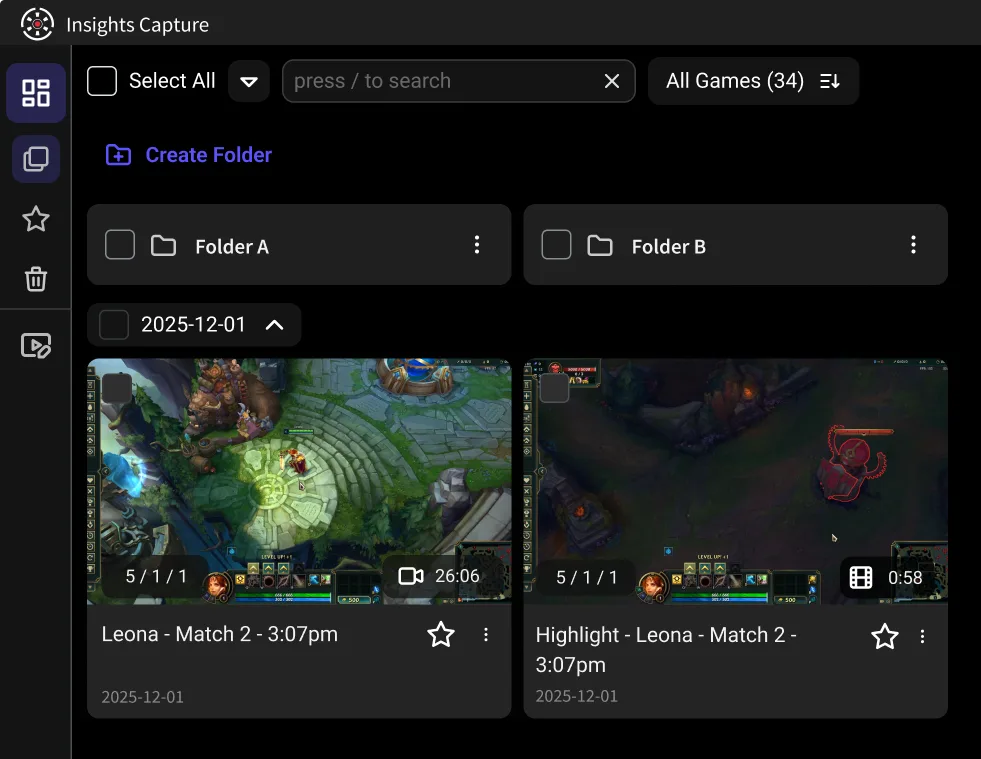
To record League of Legends gameplay, install a game recorder that runs in the background, launch League and play. With Insights Capture, recording starts automatically, kills and deaths are marked on a timeline, and you can clip any play afterwards. League also has a built-in Highlights recorder, but it only works while you’re watching a replay and saves at 720p by default. This guide is for League players who want clips, full-match review or YouTube footage. It covers all three recording methods, League’s video settings and what 1080p and 4K cost in storage.
Quick steps:
- Download and install Insights Capture (free, Windows).
- Launch League of Legends. Insights detects the game and starts recording automatically.
- Play normally. Use Instant Replay (F6 by default) to save a moment, or the record hotkey (F7 by default) to record manually.
- After the match, open your library to review the game, trim highlights and share them.
3 Ways to Record League of Legends
| Method | How it works | Best for | Main limit |
|---|---|---|---|
| Insights Capture | Records matches in the background and timestamps kills, deaths, dragons and barons | Full games you can clip or review later | Windows only |
| League Highlights | Records from inside a replay and saves a .webm file | A quick clip of a recent game, with nothing to install | Replays only, 720p by default |
| OBS Studio | Manual recording or a replay buffer, with full control over settings | Creators who want custom scenes and audio | More setup, and you start it yourself |
How to Record With League’s Built-In Highlights
The League client can export video from a replay. Riot calls these clips Highlights.
- Download the replay from your end-of-game screen or match history.
- Start the replay and jump to the play you want.
- Press the record button or Ctrl+V to start, and again to stop.
- Find the .webm file in your Highlights folder, or under Highlights in your client profile.
Where League saves replays and Highlights
- Highlights: C:\Users\YourName\Documents\League of Legends\Highlights
- Replays: C:\Users\YourName\Documents\League of Legends\Replays
You can change both in the client settings, under Replays.
Why your League Highlights look low quality
Highlights record at 720p by default. Change the video quality in-game while you’re watching a replay, before you start recording.
The limits
Highlights only work from replays, so they can’t capture a game while you play it. Replay files (.rofl) only play in the client and stop working after a new patch. Our League replay guide covers how to work around that.
How to Record League of Legends With Insights Capture
Step 1: Install Insights Capture
Download Insights Capture, install it and sign in. It’s free and runs on Windows. Automatic recording is the easiest mode to start with, since every match gets saved without touching a hotkey.
{{button}}

Step 2: Set League’s Video Settings
Open Settings > Video in the game. These are the options League offers, with a sensible starting point for recording:
| Setting | Start with | Note |
|---|---|---|
| Resolution | Your monitor’s native resolution | Use 3840×2160 only if you play on a 4K screen |
| Window Mode | Full Screen or Borderless | Borderless is easier if you alt-tab |
| Character, Environment, Effects and Shadow Quality | Medium | Lower Shadow and Effects first if teamfights dip |
| Frame Rate Cap | Your monitor’s refresh rate, if you can hold it | Options run from 25 to 240 FPS, plus Uncapped |
| Anti-Aliasing and Wait for Vertical Sync | Off | Turn them on if you see jagged edges or tearing |
| Hide Eye Candy | Your choice | Turns off ambient and critter effects |
Step 3: Set Your Recording Quality

- Resolution: match your game for the sharpest footage, or use 1080p to save space.
- Frame rate: 60 FPS suits most League footage. Our FPS guide explains when to change it.
- Encoder: use a GPU encoder such as NVIDIA NVENC or AMD AMF to take the work off your CPU.
- Hotkeys: F7 starts and stops a recording, and F6 saves an Instant Replay. You can change both in settings.
If your recorder lets you set a bitrate, YouTube’s recommended upload bitrates are a good guide. Here’s what they mean for a 30-minute game:
| Setting | Bitrate | Size of a 30-minute game |
|---|---|---|
| 1080p, 60 FPS | 12 Mbps | 2.7 GB |
| 1440p, 60 FPS | 24 Mbps | 5.4 GB |
| 4K, 60 FPS | 53–68 Mbps | 11.9–15.3 GB |
Step 4: Test Before a Ranked Game
- Press Ctrl+F in game to show your FPS.
- Play a custom game against bots with recording off, and note your FPS in a busy fight.
- Repeat with recording on.
- Watch the video back, looking for stutter or dropped frames.
- If something’s off, lower Effects and Shadow Quality first, then lower your recording resolution or frame rate.
Step 5: Keep Recordings Reliable

- Record to an SSD so your drive can keep up.
- Set a storage limit so old recordings don’t fill your drive.
- Update your GPU drivers and close programs you don’t need.
- Watch your temperatures during long sessions, since a hot PC can slow itself down.
Step 6: Clip, Edit and Export

Open your library, jump to a marked kill or objective and trim the clip. For bigger edits, use CapCut, DaVinci Resolve or Adobe Premiere Pro. If you’re uploading to YouTube, export as MP4 with H.264 at the same frame rate you recorded, which is what YouTube recommends.
Is 4K Worth It for League?

Usually only for YouTube. 4K makes champions, spell effects and the map sharper, which helps guides and montages. It also takes roughly 4 to 6 times the storage of 1080p, and you need a 4K display to play at true 4K. For clips to friends or reviewing your own games, 1080p at 60 FPS is plenty.
What Insights Capture Adds for League
- Automatic recording: every match is saved without touching a setting.
- Timeline markers: kills, deaths, dragons and barons are timestamped, so you can skip to the fight that mattered.
- Instant Replay: save the last moments with a hotkey when you don’t want a full recording.
- VOD review: upload matches, add timestamps, draw on frames and leave comments with teammates or coaches.
See the League of Legends page for more. The same setup covers TFT recording for Riot’s auto-battler and Dota 2 clipping if you also play the other big MOBA.
See more: How to Record Valorant Gameplay and Edit Montages Like a Pro
See more: 10 Best Free Game Recorder Software
FAQs: How to Record League of Legends
1. What’s the best way to record League of Legends?
It depends on what you want. A background recorder such as Insights Capture keeps whole games with kills marked. League’s Highlights work for a quick clip from a replay. OBS suits creators who want full control.
2. Does League of Legends have a built-in recorder?
Yes. You can record Highlights while watching a replay, using the record button or Ctrl+V. It can’t record while you’re playing, and it saves .webm files at 720p by default.
3. Where does League save Highlights and replays?
By default, in the Highlights and Replays folders under Documents\League of Legends. You can change both in the client settings, under Replays.
4. Why are my League Highlights low quality?
Highlights record at 720p by default. Change the video quality in-game while you’re watching a replay, before you start recording.
5. What bitrate should I use for 4K League footage?
YouTube recommends 53–68 Mbps for 4K at 60 FPS and 35–45 Mbps at 30 FPS. At 60 FPS, a 30-minute game takes about 12 to 15 GB.
6. Can I record League in 4K on a mid-range PC?
Possibly, but test it first. Use a GPU encoder and an SSD, record a custom game, and check the video for dropped frames. If it struggles, 1440p or 1080p is a better fit.
7. Does recording lower my FPS in League?
It can, because recording adds work for your PC. Press Ctrl+F to show your FPS, then compare a busy fight with recording on and off.
Final Thoughts
Pick the method that fits what you want from the footage: Highlights for a quick clip, OBS for full control, or a background recorder when you want every game saved. Start at 1080p and 60 FPS, test it in a custom game, and only move up to 4K if you’re making videos that need it. Insights Capture is free if you want to start there.