How to Clip on PS5 — Save Recent Gameplay Fast

Your PS5 is always recording — the Create button can save anywhere from the last 15 seconds to a full hour of gameplay. Here's how to claim those clips before the buffer overwrites them, the settings worth changing once, and how to get clips off the console for editing and team review.
Your PS5 is always recording. The console keeps a rolling buffer of your recent gameplay — up to the last hour — so the ace you just hit is already saved; you just have to claim it before it's overwritten. Here's exactly how to clip on PS5.
How to Clip on PS5 in Three Steps
- Press the Create button (left of the touchpad on your DualSense).
- Select Save Recent Gameplay.
- Choose how far back to save — anywhere from the last 15 seconds up to the last 1 hour of gameplay.
The clip lands in your Media Gallery. That's it — no setup, and it works in every game.
The faster way: in Settings → Captures and Broadcasts → Shortcuts for Create Button, you can switch from Standard to Easy Video Clips (or Easy Screenshots), which streamlines the button for quick capture instead of opening the full create menu every time.
Settings Worth Changing Once
Head to Settings → Captures and Broadcasts:
- Video clip format: pick MP4 if you plan to edit or share clips elsewhere — it's compatible with everything.
- Resolution: up to 4K on supported games (larger files), or 1080p for easy sharing.
- Include mic audio / party audio: off by default; turn on if you want commentary in clips (party members are notified).
- Trophy auto-captures: the PS5 automatically saves screenshots and clips for trophies — adjust or disable this to taste.
The Two Limits to Know About
The buffer overwrites itself. “Recent gameplay” means recent — once the rolling window passes, the moment is gone unless you saved it. If a highlight happened hours ago, there's nothing to recover.
Getting clips off the console is clunky. Your options: share directly to friends via PSN, use the PS App to sync recent captures to your phone, or copy to a USB drive from the Media Gallery for full-quality files. There's no native way to organize a growing clip library, review gameplay with teammates, or post straight to your usual platforms.
Xbox works along similar lines but with a sharper catch — captures you upload to the Xbox network can be deleted after 90 days. We covered it in our guide to Gamer DVR and Xbox clips.
Editing and Sharing PS5 Clips Like a PC Player
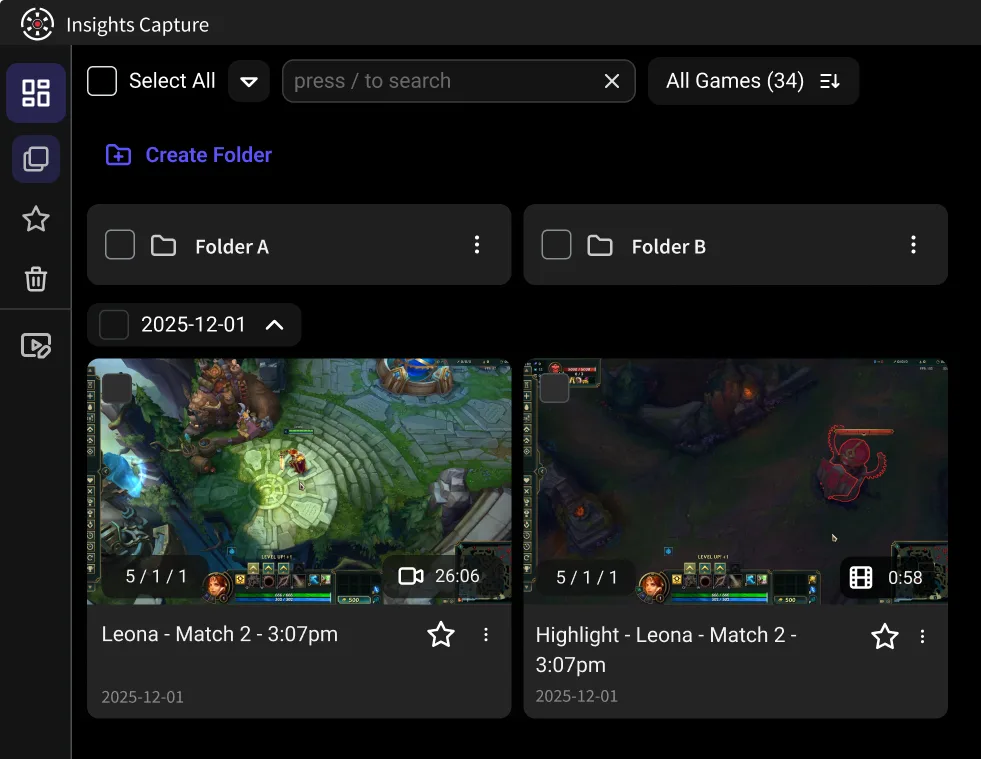
Once your clips are off the console, you can upload them to your Insights library — the same place PC players' clips live. From there you can trim them, keep them organized by game, share links that don't expire, and run team review with timestamped comments and drawing tools.
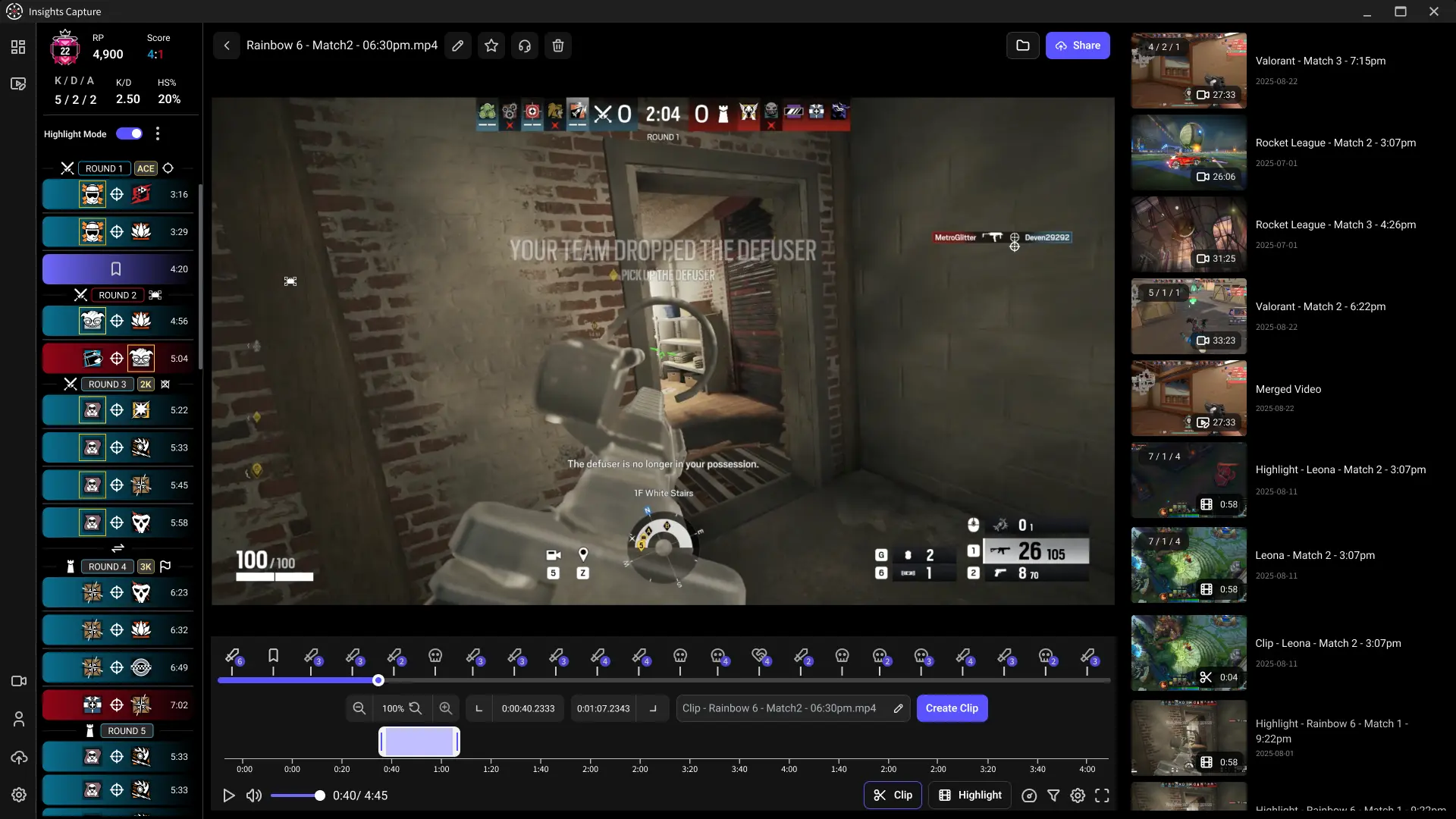
If you also play on PC, Insights Capture auto-clips your PC sessions so everything ends up in one library — console highlights and PC highlights side by side.
{{button}}
FAQs: Clipping on PS5
1. How do I clip the last 30 seconds on PS5?
Press Create → Save Recent Gameplay → choose 15 or 30 seconds. Switching the Create button shortcut to Easy Video Clips makes this faster.
2. How long can a PS5 clip be?
You can save anywhere from the last 15 seconds up to the last hour of gameplay per save.
3. Where do PS5 clips go?
Your Media Gallery. From there you can trim, share to PSN, copy to USB, or sync to the PS App.
4. Why is my PS5 clip missing the moment?
The rolling buffer only covers recent play, and suspending the game or switching apps can cut it short. Save clips soon after the moment happens.
5. Can I auto-clip on PS5 like on PC?
Not for arbitrary moments — the PS5 only auto-captures trophies. Automatic highlight detection for kills, wins and clutches is a PC feature; that's what Insights Capture does in the background while you play.
Final Thoughts
PS5 clipping is genuinely good for a console — a rolling hour of buffer and one-button saves cover most moments. The gap is everything after the clip: organizing, editing, and sharing. Bridge it by moving your best clips into an Insights library, and if you're a two-platform player, let Insights Capture handle the PC side automatically. For every PC method compared, see our full guide: How to Clip on PC. Contact us now!