How to Clip on PC — Every Method Compared (2026)

Every Windows PC can already save the last 30 seconds of gameplay — the question is which method fits you. This guide compares all five ways to clip on PC, from the built-in Win+Alt+G shortcut to fully automatic highlight detection, with honest pros and cons for each.
“Clip it or it didn't happen” only works if you know how to clip. The good news: every Windows PC already has at least one way to save the last 30 seconds of gameplay, and the best methods are free. This tutorial covers all five ways to clip on PC — from the built-in keyboard shortcut to fully automatic clipping software — with honest pros and cons for each, so you can pick the method that fits how you play.
The Fastest Answer: Press Win + Alt + G
If you just need to record a clip right now, Windows has you covered. Xbox Game Bar is built into Windows 10 and Windows 11:
- Press the Windows logo key + G to open Game Bar, or go straight to step 2.
- Press Windows logo key + Alt + G to record the last 30 seconds of gameplay.
- Your game clips save to the Videos → Captures folder, along with any screenshots you take with Win + Alt + PrtScn.
It's free, it's already installed, and it works in almost any game. The catch: there's no auto-capture — if you didn't press the hotkey, the moment is gone — and there are no built-in editing or sharing tools. Which brings us to the real question.
How to Clip the Last 5 or 10 Minutes on PC (Windows 11)
The default 30-second window is short. Every method here lets you record clips with a longer window:
- Xbox Game Bar: open Settings → Gaming → Captures and set “Record the last” to up to 10 minutes. Now the same Win + Alt + G shortcut clips the last 5 or 10 minutes instead of 30 seconds.
- NVIDIA Instant Replay: adjust the replay length slider up to 20 minutes.
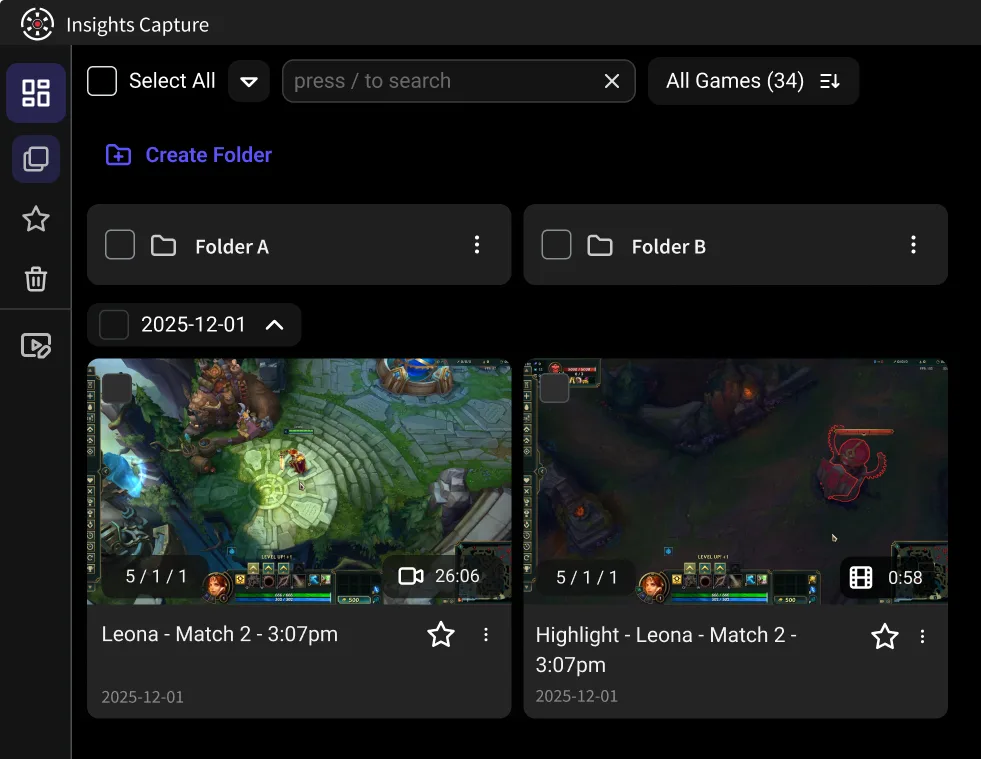
- Insights Capture: you don't have to choose a window at all — the full match is recorded in the background, so you can pull any moment afterward.
Longer buffers use more disk space, so keep an eye on your drive if you set a 10-minute window at high resolution.
The Five Ways to Record Game Clips on PC, Compared
1. Xbox Game Bar (built-in)
Best for: occasional clips with zero setup. Free, pre-installed on every Windows PC, reliable. Weaknesses: manual only, basic quality settings, no game-event detection, no editor. If you're coming from a console, the equivalent feature there is covered in our guide to Gamer DVR and Xbox clips.
2. NVIDIA ShadowPlay / NVIDIA App
Best for: GeForce owners who want minimal FPS impact. Instant Replay saves the last 30 seconds to 20 minutes with a hotkey, using GPU encoding that barely touches performance. Weaknesses: works only with an NVIDIA card, manual clipping, sharing is bare-bones.
3. Steam Game Recording
Best for: Steam-only players. Steam's built-in recorder offers background recording and timeline markers for supported games. Weaknesses: Steam titles only, limited event detection, clips live inside Steam's ecosystem.
4. OBS Studio Replay Buffer
Best for: maximum control. OBS Studio is a free, open-source screen recorder: set a replay buffer, bind a keyboard shortcut, and it saves the last N seconds in exactly the quality and format you choose. You can start recording and stop recording full sessions too. Weaknesses: real setup effort, manual clipping, and it's overkill if you're not also streaming to YouTube or Twitch.
5. Insights Capture (auto-clipping)
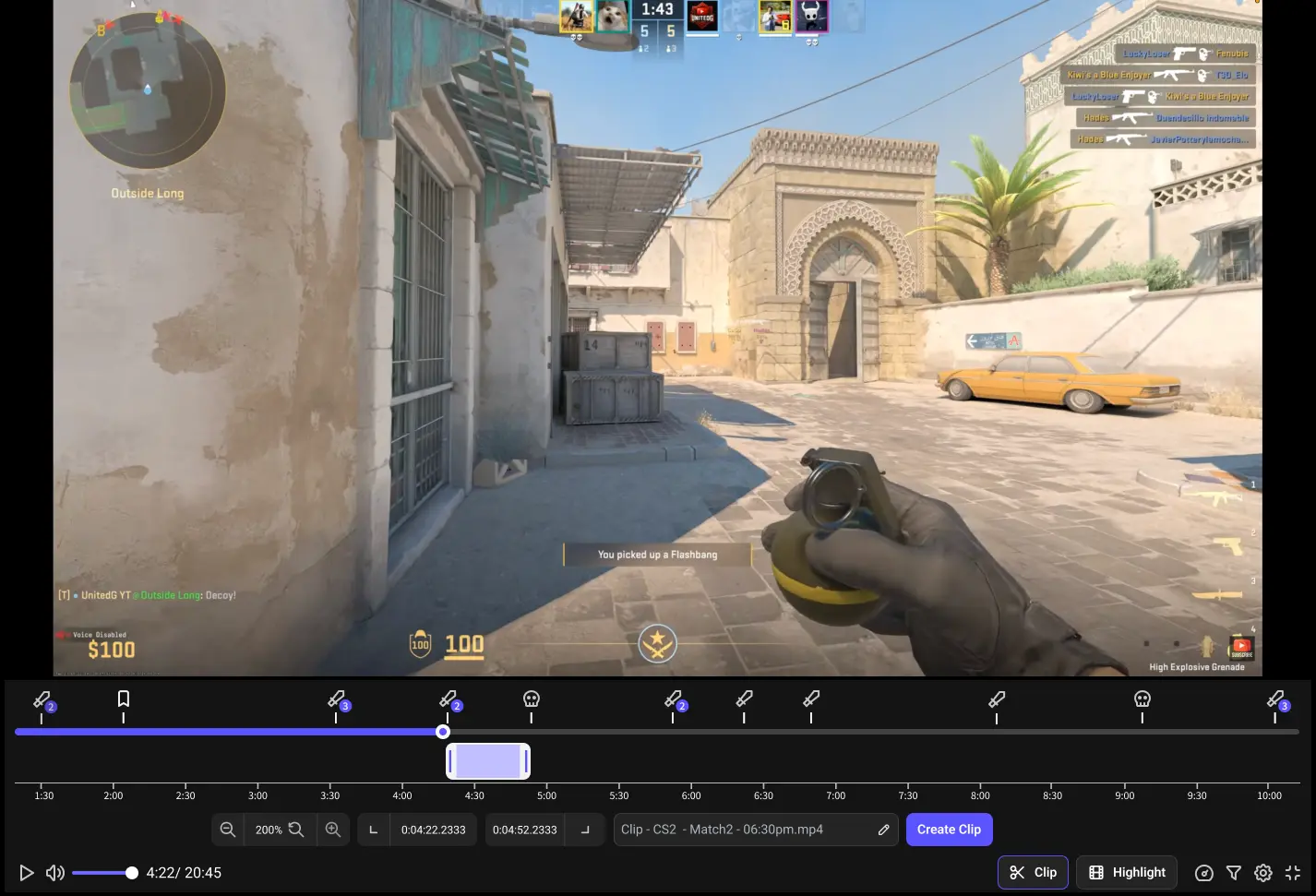
Best for: never missing a moment. Insights Capture records your matches in the background with no FPS loss and marks kills, wins, and key moments automatically — so instead of remembering to press a hotkey mid-clutch, you watch the timeline after the match and your highlights are already flagged. Clip in two clicks, then share video clips straight to Discord or your team's library. It's a free download, and it's the only method on this list where forgetting to press a button costs you nothing.
{{button}}
Which Method Should You Use?
- You clip once a week: Game Bar. Don't install anything.
- You have an NVIDIA card and hate FPS drops: ShadowPlay for manual moments.
- You already live in OBS: Replay Buffer.
- You clip constantly, play competitive titles, or share with friends and teammates: Insights Capture — auto-detection is the difference between “I got most of my plays” and “I got all of them.”
Plenty of players run two: ShadowPlay or Game Bar as a fallback, Insights as the always-on layer. There's no conflict running them together. Whichever setup you land on, it doesn't change from game to game — Dota 2 clipping and PUBG clipping use the same hotkeys and the same settings as everything else on this list.
If you have been using Medal for this, our breakdown of Medal clips covers where its files land and the free-plan limits worth knowing, and our Insights vs Medal comparison covers the differences before you switch.
Settings That Make Game Clips Look Good (Any Method)
- Record at the frame rate you play at — 60 FPS for most players, 120 for competitive shooters. Full breakdown: what FPS to record at.
- 1080p resolution is the sweet spot for sharing — platforms compress anything bigger anyway, whichever screen recorder you use.
- Clip length: 15–30 seconds for social, up to a few minutes for review clips.
- Turn your microphone on or off deliberately — comms make funny clips better and ranked-rage clips worse. Every tool here has a mic toggle in its settings.
- Keep 20–50 GB free on an SSD so long sessions never stutter.
Clipping Gameplay vs. Clipping Your Screen
One quick distinction, since “how to clip on computer” can mean two things. If you want a still image — a picture of part of your screen — Windows 11's Snipping Tool does that with Win + Shift + S; that's a screenshot, not a video. Everything in this tutorial is about video game clips: short recordings of gameplay. If you need full desktop video recording for something that isn't a game (a browser, an app, a presentation), OBS or Game Bar both work as a general screen recorder on your desktop or laptop.
FAQs: How to Clip on PC
1. How do I clip the last 30 seconds on PC?
Press Win + Alt + G (Game Bar), your ShadowPlay instant replay hotkey, or your replay-buffer hotkey in OBS. With Insights Capture running, you don't need a hotkey at all — key moments are auto-marked on your timeline after the match.
2. What's the best free clipping software for PC?
Game Bar is the best zero-install option; Insights Capture is the best full-featured free option, adding automatic highlight detection, an editor, cloud sharing, and team review on top of recording.
3. Does clipping software lower FPS?
Modern tools use GPU encoding, so the impact is minimal. Game Bar, ShadowPlay, and Insights Capture all record clips with no meaningful FPS loss on a mid-range device; OBS depends on your settings.
4. Is there software that clips automatically?
Yes — auto clipping software watches for in-game events like kills, wins and objectives, and saves those moments without input. Insights Capture does this across a very wide game list, which is why it suits players who forget to press hotkeys mid-fight.
5. Is OBS a good clipping software?
Yes, if you want control. The replay buffer is powerful and completely free, but everything is manual — you configure it, you press the hotkey, you edit elsewhere. For set-and-forget clipping, an automatic tool is the better match.
6. How do I clip on console?
PS5 and Xbox have built-in capture — see our PS5 clipping guide and our Xbox Game DVR guide. To edit or share console clips with your team, move them into your Insights web library.
Final Thoughts
Clipping on PC in 2026 is a solved problem — the only real decision is manual versus automatic. Hotkeys work until the round is too intense to remember them; automatic capture works every match. Start with what's built into Windows, and when you get tired of saying “I wish I'd clipped that,” Insights Capture is free and takes five minutes to set up. Contact us now!