Gamer DVR & Xbox Clips — How to Record, Find and Keep Them

Gamer DVR records the last 30 seconds of your Xbox gameplay automatically — but captures uploaded to the Xbox network may be deleted 90 days after upload. This guide covers how to record, find and download your Xbox clips, and how to keep the ones that matter permanently.
If you have ever hit the Xbox button after a great play and then had no idea where the file went, you are not alone. Gamer DVR is the shorthand players use for Xbox's built-in capture system — the feature that quietly records the last stretch of your gameplay so you can save it after the fact instead of predicting the moment. This guide covers how it works on a current Xbox console, where your captures actually live, and the limitation that catches most people out: uploaded clips do not stay online forever.
What Is Gamer DVR on Xbox?
Game DVR is Microsoft's name for the background recording buffer built into every Xbox. The console continuously holds the last several seconds of play in memory, so a clutch 1v3 is still recoverable ten seconds after it happened. The same system handles screenshots. Xbox calls these files captures; everyone else calls them clips.
Two questions come up constantly. Is Game DVR safe? Yes — it is a first-party Microsoft feature, not a third-party app, and it records nothing outside your own gameplay. Should you turn it off? On a Series X|S there is no reason to. Older Xbox One hardware takes a small performance hit during longer recordings, which is the only case where disabling it helps.
How to Record Game Clips on an Xbox Console
Everything runs through the guide. Press the Xbox button to open it, then:
- Capture what just happened — press X. This saves the last 30 seconds by default.
- Start a longer recording — open Capture & share and choose Start recording, then stop it manually.
- Take a screenshot — press Y.
- Change the length — Profile & system → Settings → Preferences → Capture & share → Max clip length. Internal storage tops out at two minutes; plug in a USB drive and you can record considerably longer.
One thing worth knowing: some game developers flag protected content — licensed cutscenes and music videos, mostly — and the console will refuse to record those sections. If a capture comes out black, that is usually why, not a broken console. For a deeper walkthrough of button combos, clip-length settings and downloading to your phone or PC, see our step-by-step guide on how to clip on Xbox.
Where to Find Your Xbox Clips on Console, PC and Mobile Devices
Your captures are reachable from three places, and knowing all three saves a lot of time:
- On the console. Xbox button → Capture & share → Recent captures → Show all. From here you can view, trim, upload, and delete.
- On mobile devices. The Xbox app for iOS and Android has a Captures section under your gamertag. Download a clip to your phone and it is one tap from Instagram, TikTok, Facebook or Twitter.
- On a PC. The Xbox app on Windows, or the media page on xbox.com signed in with your account, will let you download the raw video file.
Third-party sites that let you look up Xbox clips by gamertag have existed for years. They only ever surfaced captures you had uploaded to the Xbox network, and they depend on an API Microsoft has steadily narrowed — so treat them as a convenience, never as a backup.
Why Xbox Recordings Disappear After 90 Days
This is the part most players find out too late. Captures live in two separate places. The copy on your console's local storage stays until you delete it or the drive fills. The copy on the Xbox network — anything you uploaded to share — is governed by a retention policy: Microsoft states that uploaded game clips and screenshots may be deleted 90 days after upload, and your whole account is capped at 10 GB of cloud capture storage.
So when people ask whether Xbox got rid of clips, or whether their old ones are gone forever: nothing was removed from the console, but the online copies expire. If a capture matters to you, get it off the network. Download it to a PC, copy it to a USB drive, or push it to OneDrive — any of those turns a temporary file into a permanent one.
Do You Need Xbox Live to Save Captures?
No. Recording and storing clips locally works without an active Xbox Live subscription. What a Microsoft account gets you is the sharing layer — uploading to the Xbox network, syncing to the app on your phone, and posting straight to social. Local capture is free and always on.
Recording Xbox Gameplay for YouTube
Game DVR is built for moments, not projects. Two-minute clips at 1080p with console-side trimming are perfect for sending a play to a friend, and genuinely limiting if you are making YouTube videos. For full sessions, commentary, facecam and real editing, the standard route is a capture card feeding a PC — at which point you are recording on the PC anyway, and the software you choose matters more than the console does.
That is where most console players eventually land, and it is worth reading our comparison of the best clipping software for game highlights before you buy anything.
The PC Equivalent: Automatic Clips That Never Expire
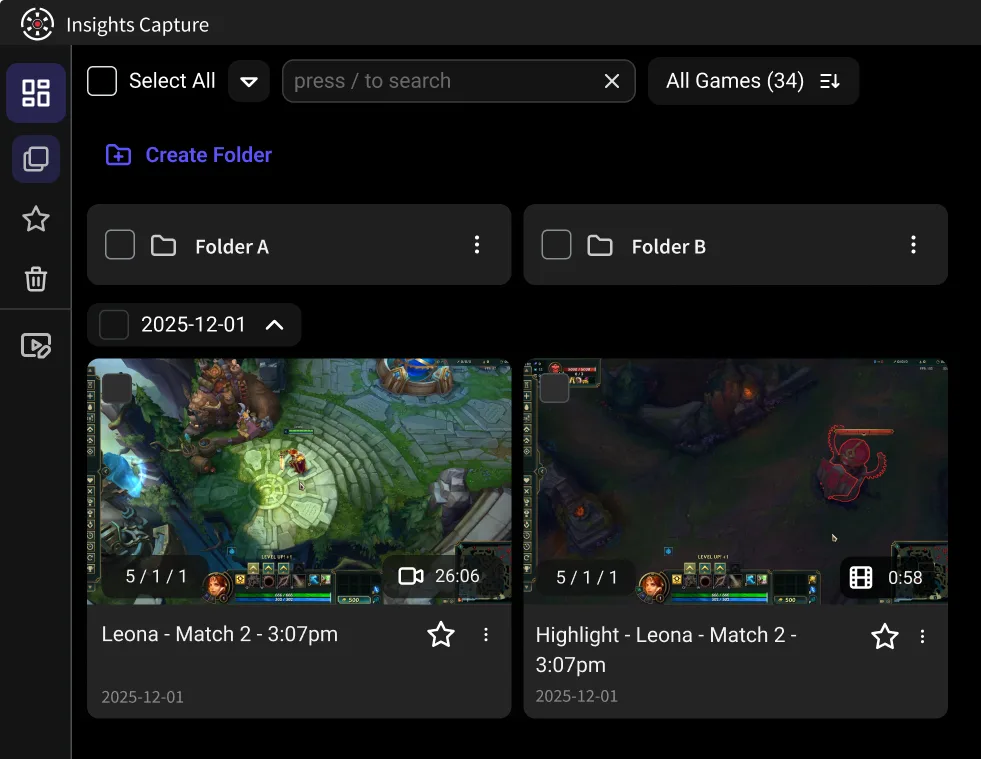
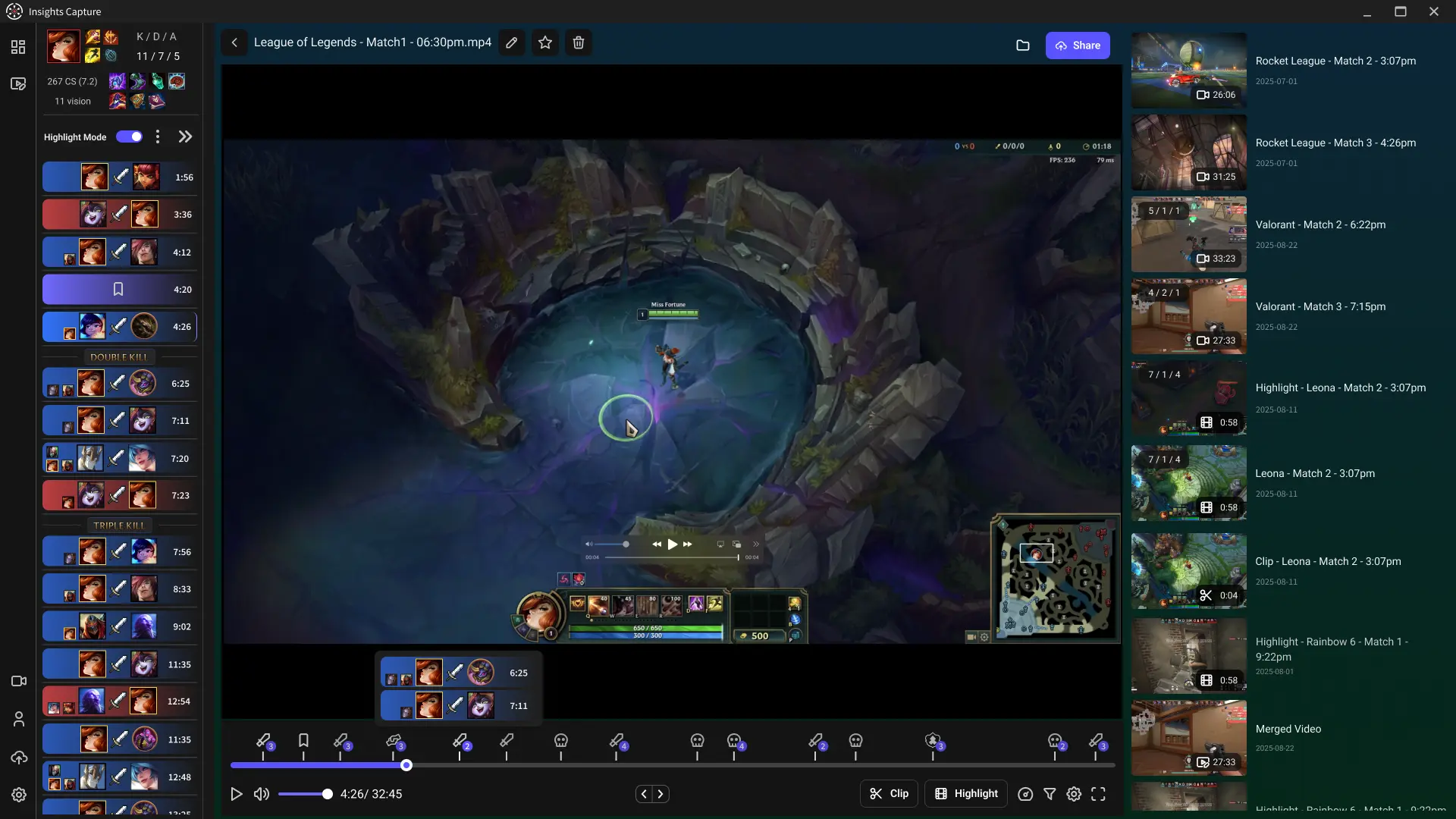
If your main rig is a PC, you do not need to think about buffers or 90-day windows at all. Insights Capture records every match automatically in the background with no measurable FPS cost, marks kills and key events on a timeline, and clips in two clicks after the fact. The free plan has no watermark and no clip-length wall, and share links do not expire — so the play you save tonight is still playable in five years.
{{button}}
It also includes a VOD review workspace with timestamped comments and drawing tools, which is the difference between collecting clips and actually getting better from them. Console players comparing platforms may also want our guides to clipping on PC and clipping on PS5.
FAQs: Gamer DVR and Xbox Clips
1. What is Game DVR?
It is the Xbox feature that continuously buffers your gameplay so you can save the last 30 seconds — or start a longer recording — without having set anything up first. It also handles screenshots.
2. Where can I find my Xbox clips?
Xbox button → Capture & share → Recent captures on the console, the Captures section of the Xbox mobile app, or the Xbox app on Windows. All three read the same account.
3. Are Xbox clips gone forever after they are deleted?
Captures uploaded to the Xbox network may be removed 90 days after upload and cannot be recovered. Clips still stored locally on the console are unaffected — check there before assuming a capture is lost.
4. How do I clip my gameplay on Xbox?
Press the Xbox button, then X. That saves the previous 30 seconds. Raise the default length in Settings → Preferences → Capture & share if 30 seconds keeps cutting your plays short.
5. Should I disable Game DVR?
On a Series X|S, no — the overhead is negligible. On an original Xbox One, turning off background recording can free up a little performance in demanding games.
6. How do I download Xbox clips to my computer?
Sign in to the Xbox app on Windows or xbox.com with your gamertag, open your captures, and download the file. Do this before the 90-day window closes on anything you want to keep.
7. Can I record Xbox gameplay in 4K?
Console captures are saved at 1080p. For 4K you need a capture card and PC recording software.
Final Thoughts
Gamer DVR is a genuinely good feature with one sharp edge: the online copies of your captures are temporary, and a lot of players only discover that when a clip they wanted is already gone. Treat the Xbox network as a share sheet, not an archive — and if you also play on PC, let Insights Capture build the permanent library underneath. Contact us if you want a hand setting it up.